
Last Updated on 10/08/2026
Regular printer maintenance is crucial for ensuring smooth office operations and minimizing downtime. Office managers and IT professionals can greatly benefit from understanding how to prevent paper jams and address common printer issues. This guide provides actionable insights and preventative measures to keep your printers in top condition, ultimately saving time and resources.
What are quick tips to prevent printer paper jams?
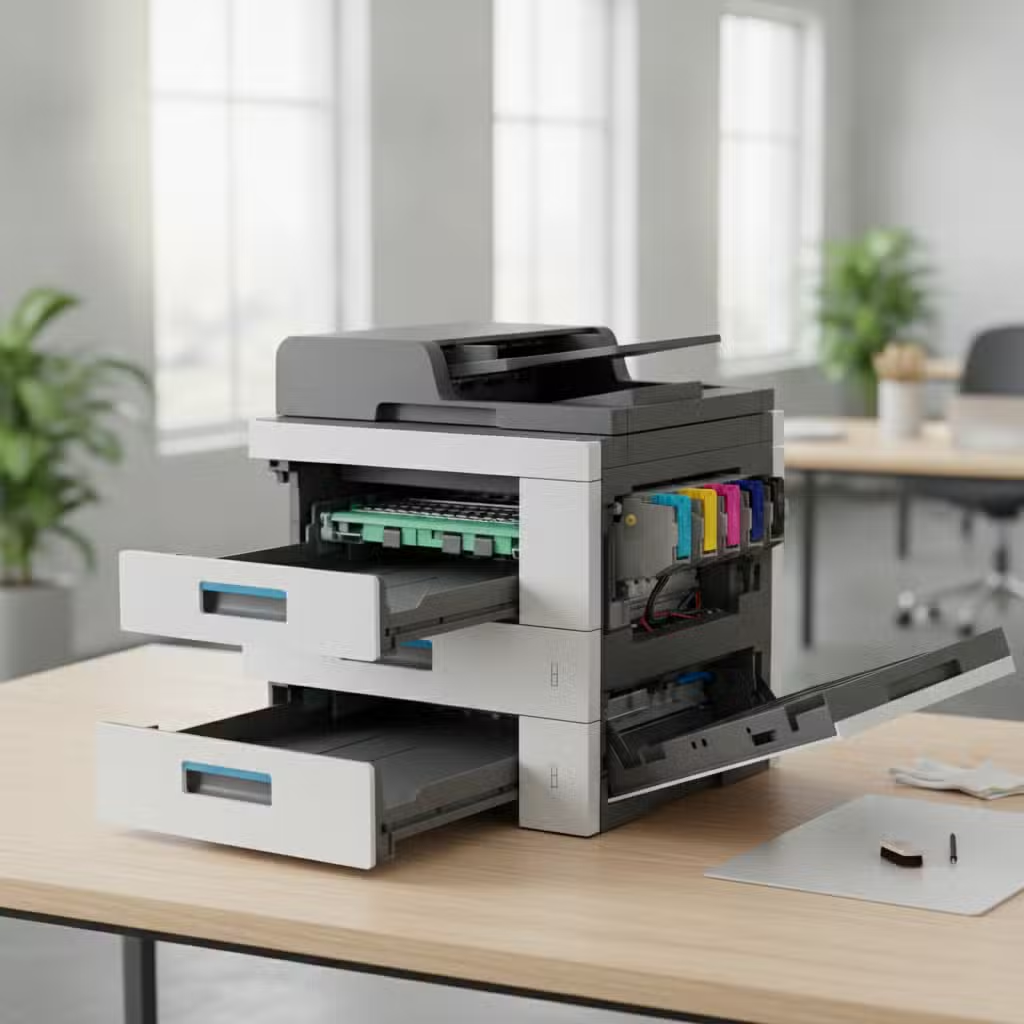
Paper jams can be a frequent annoyance, but immediate actions can help reduce their occurrence. Ensure that the paper is loaded correctly in the tray, using the appropriate size and type for your specific printer model. Regularly clean the printer rollers to remove dust and debris.
Common Printer Issues and Quick Solutions
- Paper Jams: Realign paper and clean rollers.
- Faded Prints: Replace toner or ink cartridges.
- Printer Offline: Check network connections and restart.
- Slow Printing: Reduce print quality settings for faster output.
- Smudged Prints: Clean the printer heads and use high-quality paper.
- Frequent Error Messages: Update printer drivers and firmware.
- Uneven Printing: Align print heads and check for obstructions.
Understanding the Causes of Paper Jams
Paper jams are often caused by incorrect paper loading, using the wrong paper type, or debris accumulation within the printer. Understanding these factors can help in preventing jams. Ensure that the paper is properly aligned and that the tray is not overloaded. Using the recommended paper type for your printer model is essential to avoid feeding issues. For more information, check out these Printer maintenance tips.
Regularly inspecting and cleaning the printer’s internal components, such as rollers and trays, can prevent debris buildup that leads to jams. By addressing these common causes, you can significantly reduce the frequency of paper jams in your office printers.


Brother Professional MFC-J5740DW Colour Inkjet All-in-One Printer Wireless Printing A3 White

Brother HL-L2400DW Mono Laser Printer A4 Dark Grey

Brother Professional MFC-J5340DW Colour Inkjet All-in-One Printer Wireless Printing A3 White

Brother DCP-L3560CDW Colour Laser All-in-One Printer A4 Light Grey

Brother HL-L3240CDW Colour Laser Printer A4 Light Grey
Routine Cleaning and Maintenance
Consistent maintenance is key to prolonging the life of your printer. Establish a routine cleaning schedule that includes dusting the exterior and cleaning the interior components. Pay special attention to the rollers, as they play a crucial role in paper feeding. Use a lint-free cloth and isopropyl alcohol to gently clean the rollers and other accessible parts.
Maintaining a clean printer environment also involves keeping the surrounding area free from dust and clutter. This helps prevent particles from entering the printer and causing issues. By incorporating these cleaning practices into your regular maintenance routine, you can enhance the printer’s performance and reliability.
Comparison Table of Printer Maintenance Techniques
| Technique | Benefits | Frequency |
|---|---|---|
| Cleaning Printer Rollers | Reduces paper jams and improves print quality | Monthly |
| Updating Printer Drivers | Ensures compatibility and resolves software issues | Quarterly |
| Aligning Print Heads | Enhances print accuracy and quality | Bi-annually |
| Checking for Firmware Updates | Fixes bugs and enhances functionality | Bi-annually |
Updating Software and Firmware
Software and firmware updates are vital for ensuring your printer operates efficiently. Manufacturers regularly release updates to fix bugs, improve functionality, and enhance security. Regularly check for updates through the printer’s software interface or the manufacturer’s website.
Installing the latest drivers and firmware updates can resolve many common printer issues, such as connectivity problems and error messages. Keeping your printer’s software up to date ensures compatibility with other office equipment and reduces the likelihood of encountering technical problems.
Conclusion: Key Takeaways for Printer Maintenance
Effective printer maintenance involves a combination of regular cleaning, software updates, and proper usage. By understanding the causes of common issues and implementing preventative measures, office managers and IT professionals can ensure their printers operate smoothly and efficiently.
With these strategies in place, you can reduce the frequency of paper jams and other printer problems, ultimately enhancing productivity and reducing operational costs.
Frequently Asked Questions
How often should I clean my printer?
Cleaning frequency depends on usage, but a general rule is to clean the printer monthly. Focus on the rollers and internal components to prevent debris buildup. Regular cleaning ensures optimal performance and reduces the likelihood of paper jams and print quality issues.
What type of paper should I use to prevent jams?
Use paper that is recommended by your printer’s manufacturer, typically specified in the user manual. The correct paper type and size ensure smooth feeding and reduce the risk of jams. Avoid using damaged or damp paper, as it can lead to feeding problems.
How can I update my printer’s firmware?
Firmware updates can usually be accessed through the printer’s control panel or the manufacturer’s website. Follow the instructions provided to download and install updates. Keeping firmware up to date resolves bugs and enhances printer functionality.
Why is my printer frequently offline?
Printer offline issues can result from network connectivity problems or outdated drivers. Ensure your printer is properly connected to the network and that the drivers are up to date. Restarting the printer and the connected devices can also help resolve connectivity issues.